A Day at a Nail Salon in CutieCure Salon: Demo Walkthrough
One day at a demo nail salon in CutieCure Salon: morning overview, online booking, AI nail try-on, confirming, WhatsApp reminders and the calendar.
Published 11 min read
In short
- This guide follows one working day at Moon Nail Beauty, CutieCure's demo salon. Its clients are fictional demo data, and every screen shown is a real, unedited CutieCure Salon screen.
- The day comes down to a few moves: check the overview in the morning, confirm or decline online requests, let WhatsApp reminders and the "I'll be there / Can't make it" question run, and close the day in the calendar.
- The core of it is AI try-on: you add your designs to the Catalog, and clients see them on a photo of their own hand in the free CutieCure Book app. Bookings come from your booking link, with no account needed, or from the same app.
- 1. How a salon day runs in CutieCure Salon
- 2. Morning: open the overview
- 3. Before day one: services and the booking link
- 4. Mid-morning: a client books from the link
- 5. AI try-on: the client sees your designs on her own nails
- 6. Between clients: confirm or decline
- 7. In the background: WhatsApp reminders and "I'll be there"
- 8. Clients who prefer an app: CutieCure Book
- 9. Evening: close the day in the calendar
- 10. What CutieCure Salon does not do
- 11. Run the same day with your own salon
How a salon day runs in CutieCure Salon
The short answer: you set up services and a booking link once. After that, online bookings arrive as requests, you confirm them with one click, WhatsApp sends confirmations and reminders, and the calendar shows how the day is going. In between, clients try the designs from your catalog on their own hands with AI. Here is the day in order:
- 1Morning: check today's appointments and the requests waiting for approval.
- 2One-time setup: services with real durations and prices, and your booking link.
- 3During the day: clients book from the link or from the app.
- 4Any time: clients try your catalog designs on a photo of their own hand.
- 5Between clients: confirm or decline each request.
- 6In the background: WhatsApp confirmations, reminders 24 and 2 hours before, and the attendance question.
- 7Evening: mark who came, ask for reviews and look at tomorrow.
Morning: open the overview
The day starts on the Overview screen. At the top are today's appointments, daily revenue, new clients today and total appointments. Below them is Awaiting approval: online booking requests that need your answer, each with Confirm and Decline buttons. Then comes the list of today's appointments with times and status.
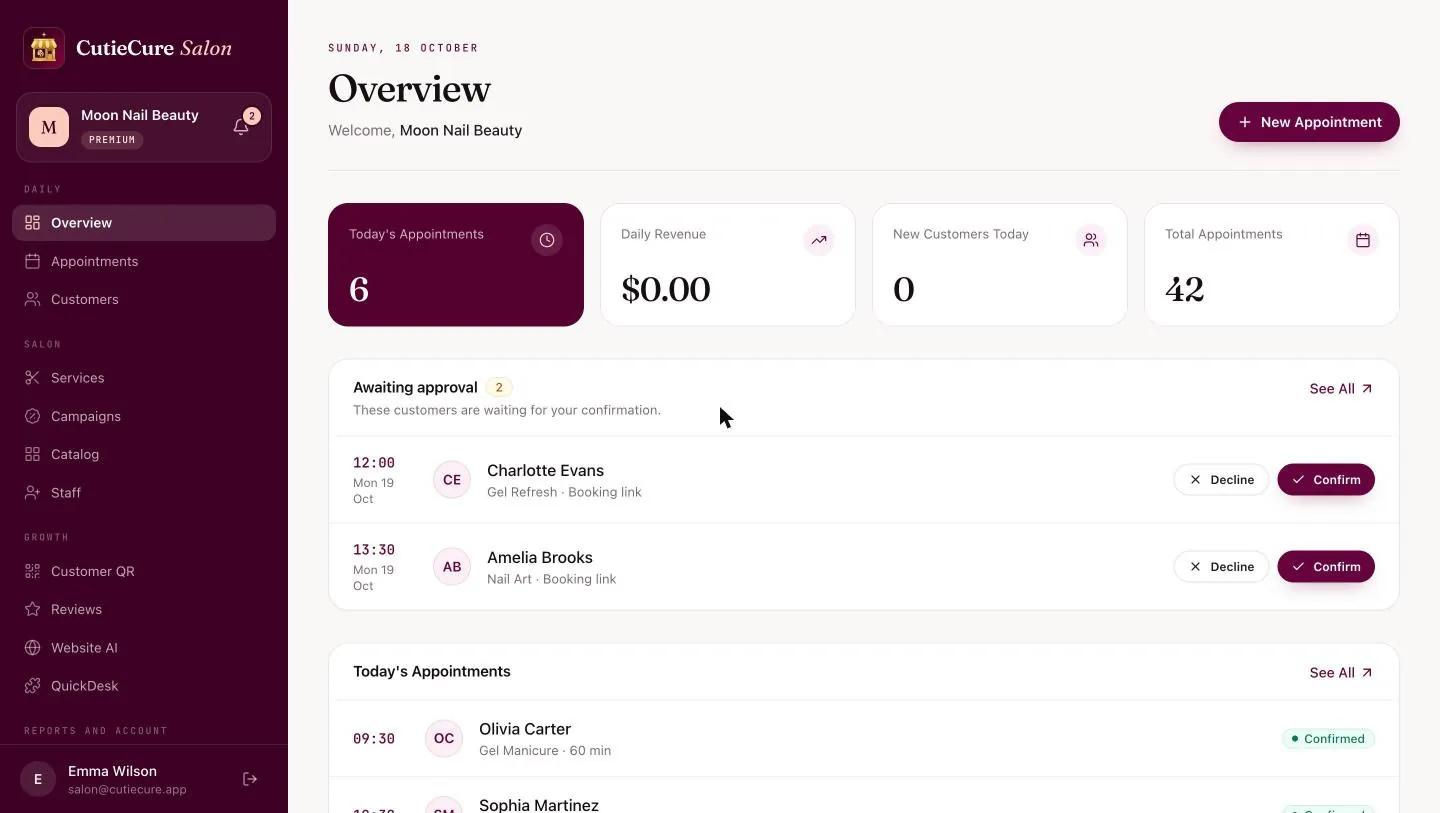
Each waiting request shows where it came from, here the booking link. The bell next to the salon name collects new bookings and client replies, and if you use the CutieCure Salon mobile app, new bookings also arrive as push notifications.
- Tip: answer waiting requests before the first client sits down, so nobody waits half a day for a reply.
- Tip: look at the gaps in today's list. A free morning slot is worth a quick Instagram story with your booking link.
Before day one: services and the booking link
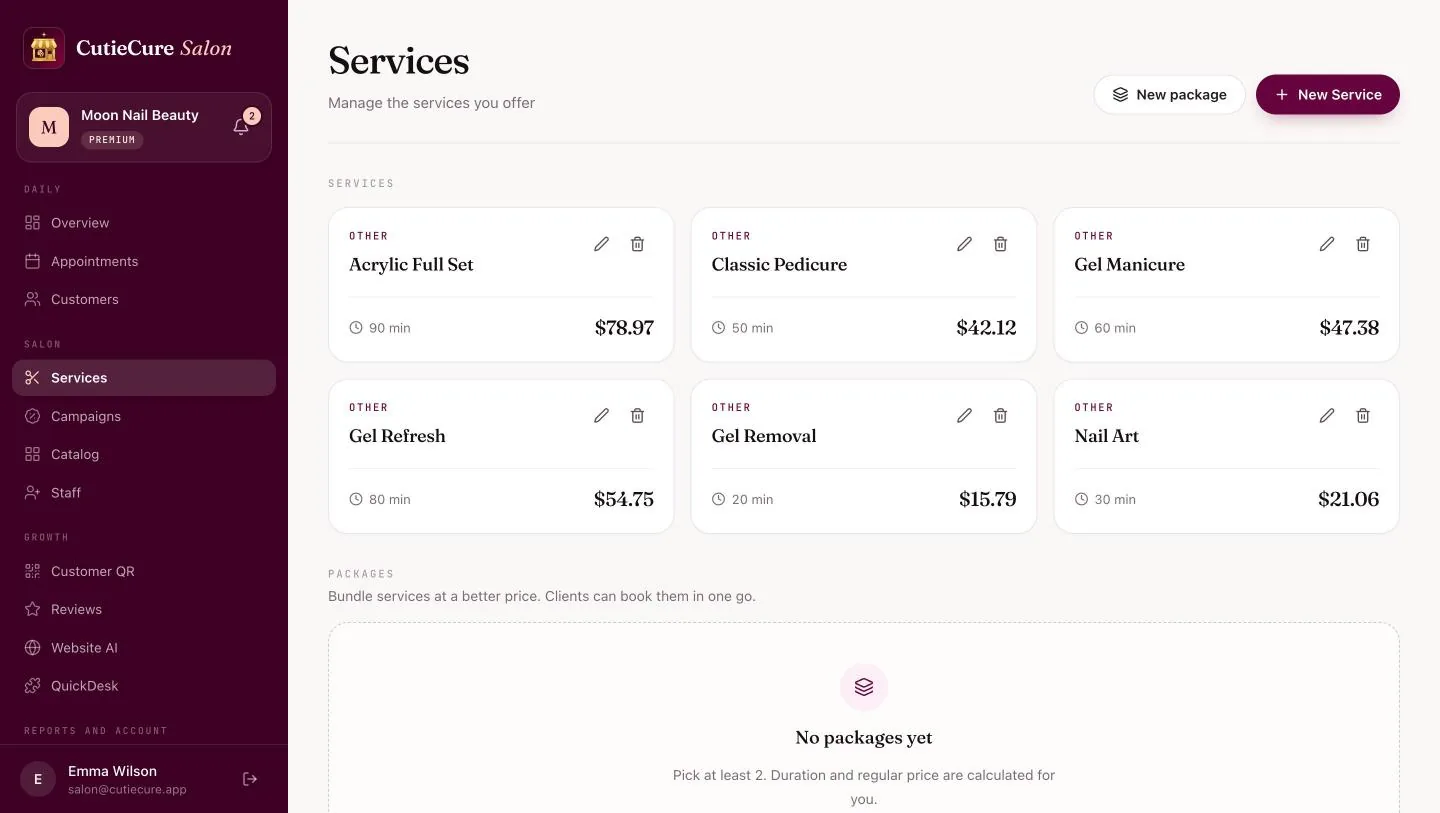
Two things are set up once. First, services: each one has a name, a duration and a price. Durations matter more than they look, because the free times clients see online are calculated from them. You can also bundle services into packages, and the package duration and regular price are calculated for you.
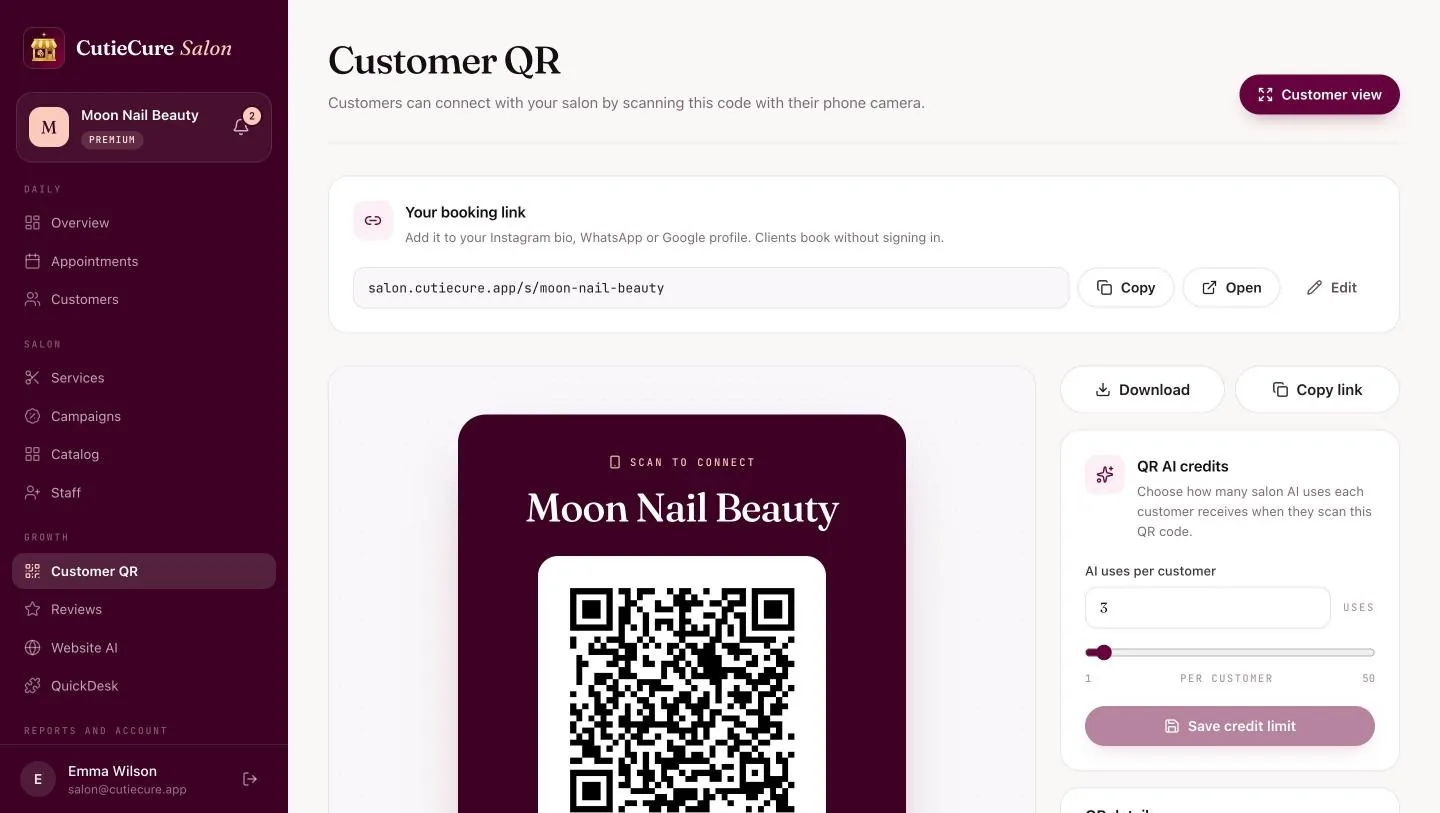
Second, the booking link. Every salon gets its own page at salon.cutiecure.app/s/your-salon. You can copy it or open it, and the salon owner can change the link name. The same card appears on the Overview, Customer QR and Website AI screens.
- Tip: use real durations, including removal and cleanup, so online bookings never collide with a service that runs long.
- Tip: put the link in your Instagram bio, Google Business Profile and WhatsApp profile. The online booking guide covers where it works best.
- Tip: check that each price covers your costs with the service price calculator.
Mid-morning: a client books from the link
This is what a client sees on the demo salon's booking page. She does not need an account or an app.
- 1She picks one or more services. A summary on the side adds up the price and time.
- 2She picks a technician, or "Anyone" for whoever is free at that time.
- 3She picks a day and one of the free time slots.
- 4She enters her name and phone number, and optionally an email, a note for the salon and a discount code.
- 5She sends the request and sees Request received, marked as awaiting confirmation.
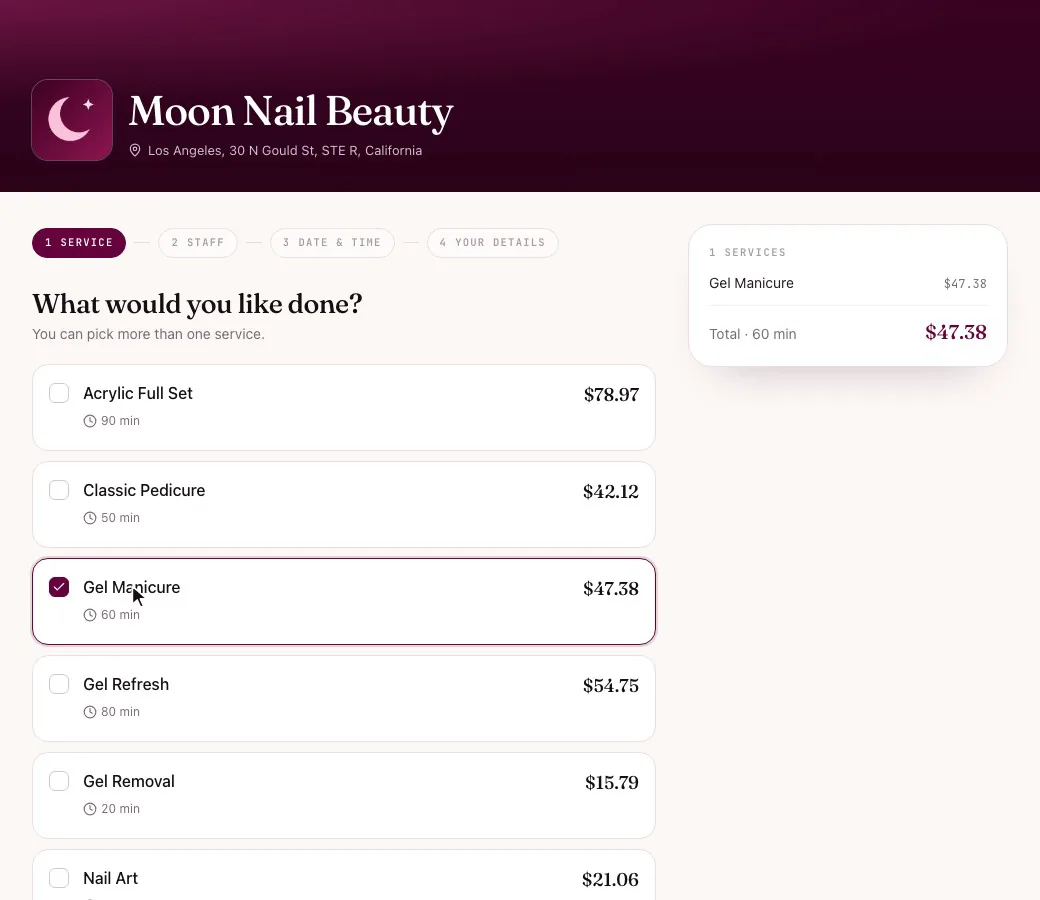
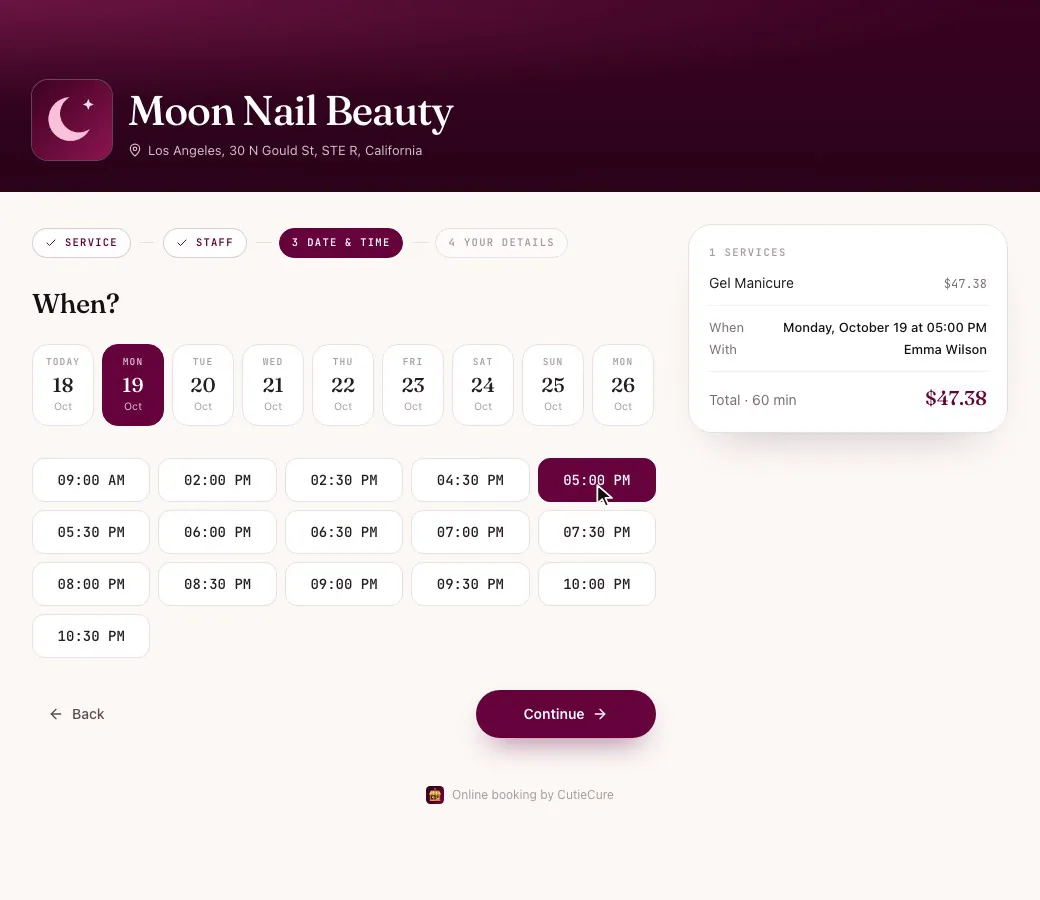
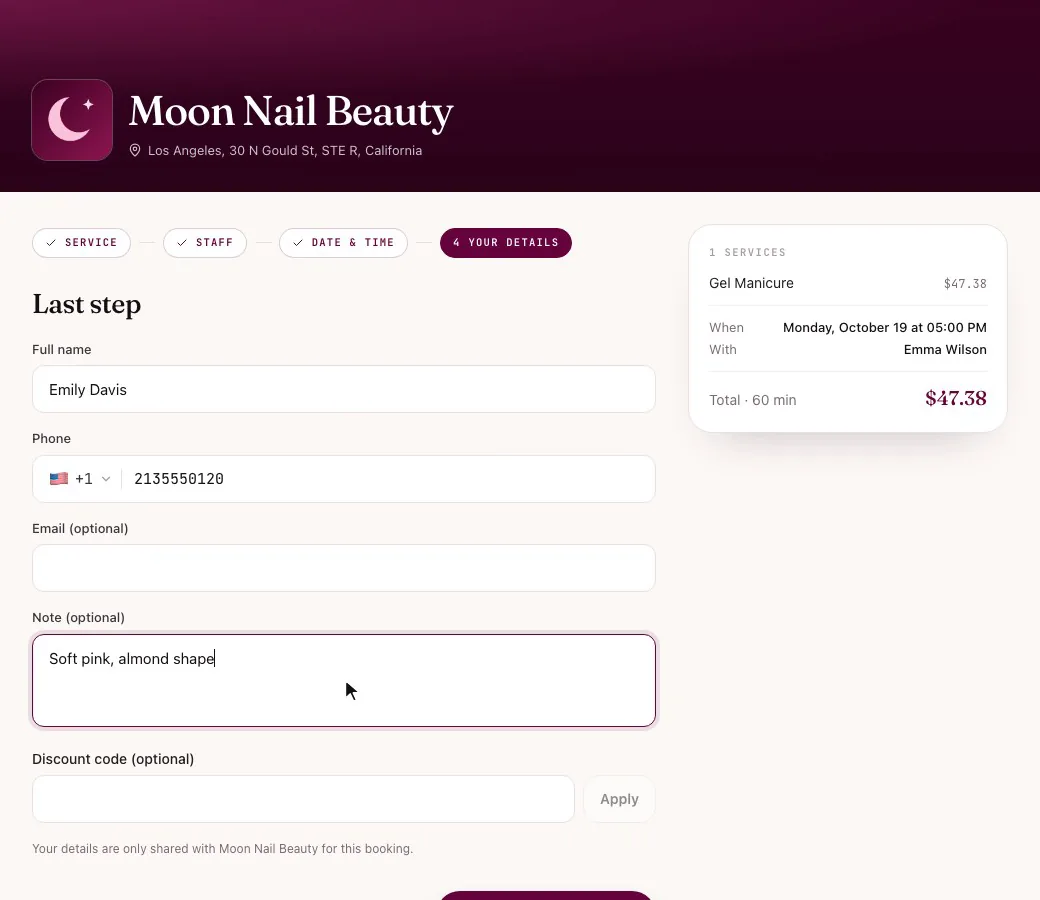
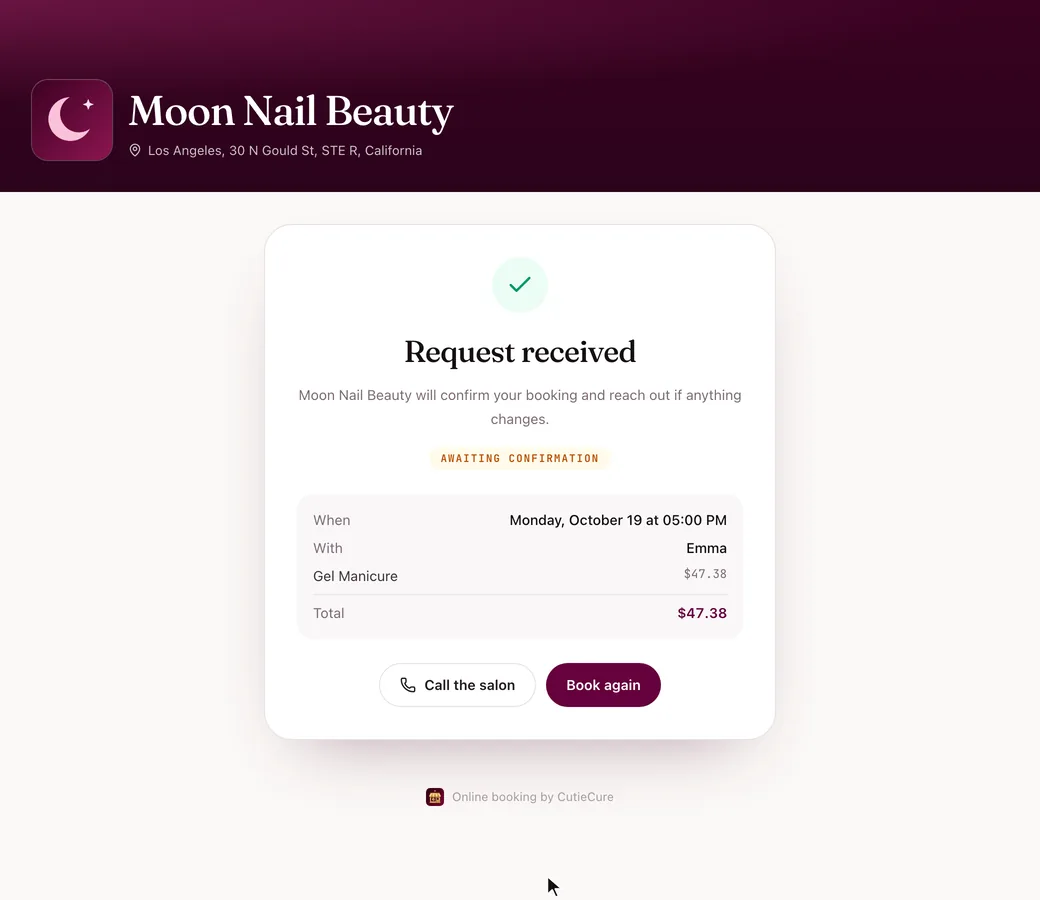
The note field earns its place in nail work. In the demo, the client wrote "Soft pink, almond shape", and the note shows in the appointment details, so the technician knows the plan before she arrives.
- Tip: name services the way clients say them ("Gel manicure", not an internal code), so they can choose without messaging you first.
AI try-on: the client sees your designs on her own nails
This is the feature clients remember. The salon puts its own designs and colours in the Catalog, and the client tries any of them on a photo of her own hand in the free CutieCure Book app, before she even sits down.
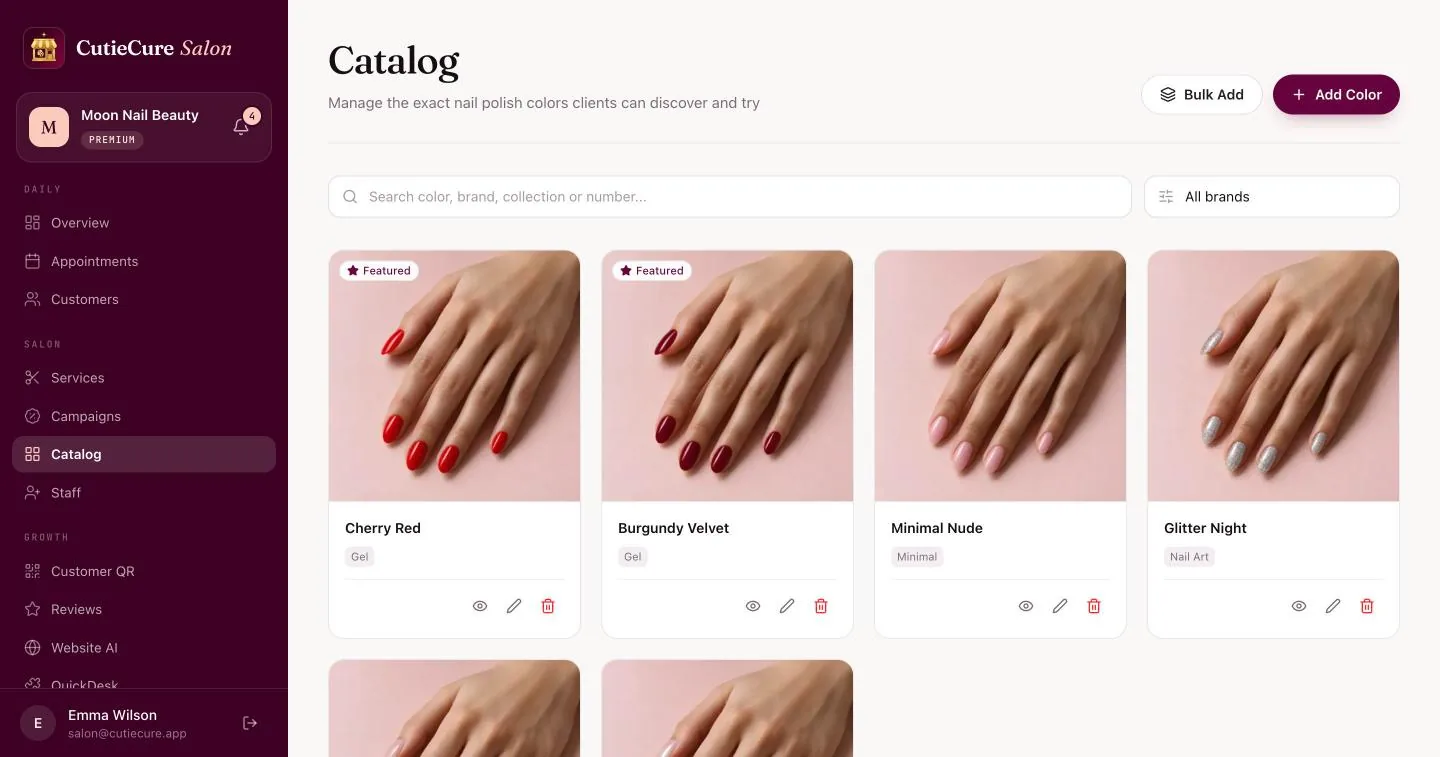
- 1In the panel, the salon adds designs and colours to the Catalog: a photo, a name and, if useful, the brand, collection, colour number and finish. Bulk Add uploads several photos at once, and favourites can be marked Featured.
- 2The client opens the Catalog tab in CutieCure Book, sees your salon's designs and taps the one she likes.
- 3She adds a photo of her hand, taken with the Camera or picked from the Gallery.
- 4She taps Generate Design. The app tells her it can take 30 to 60 seconds.
- 5She sees the design on her own nails.
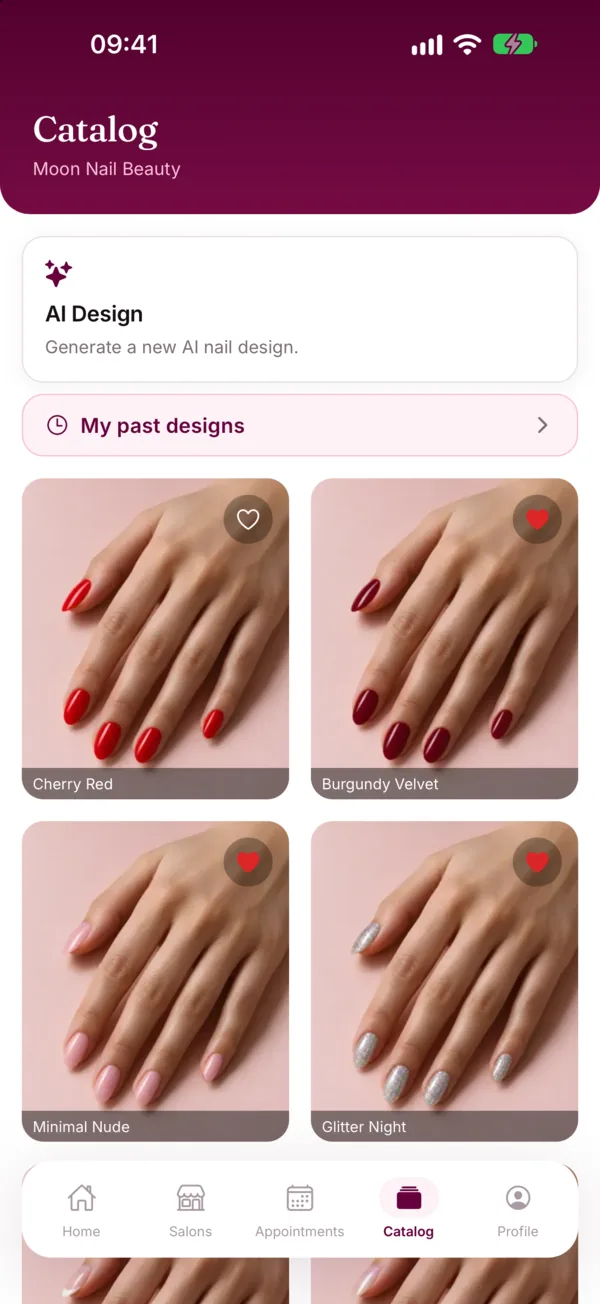
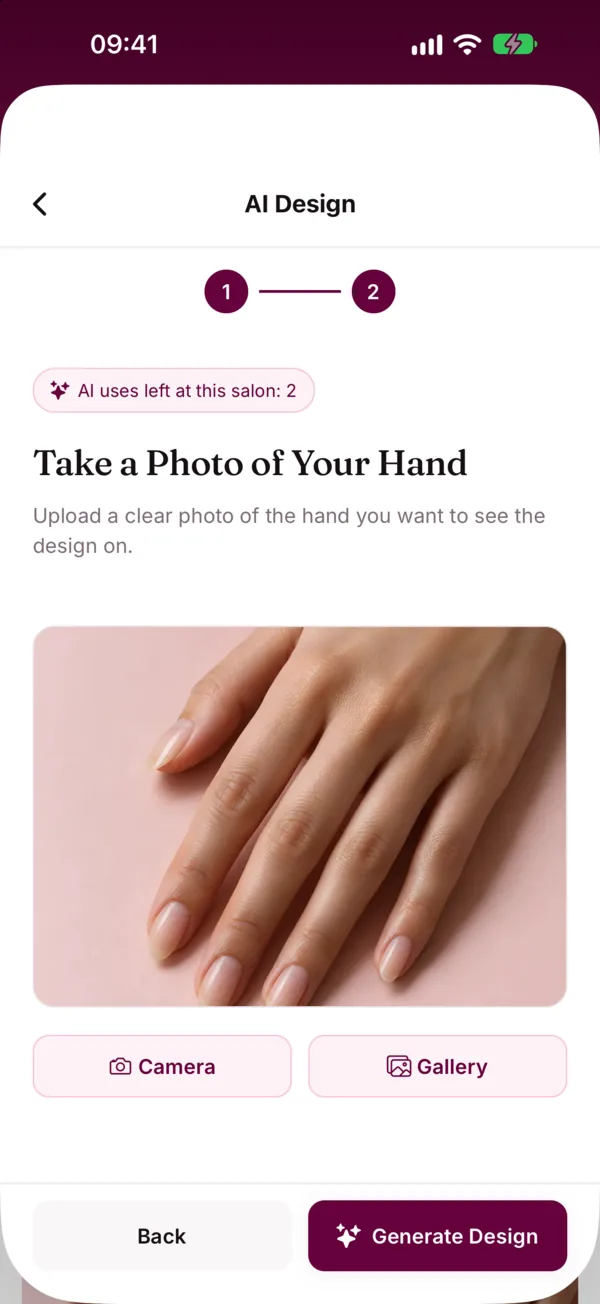
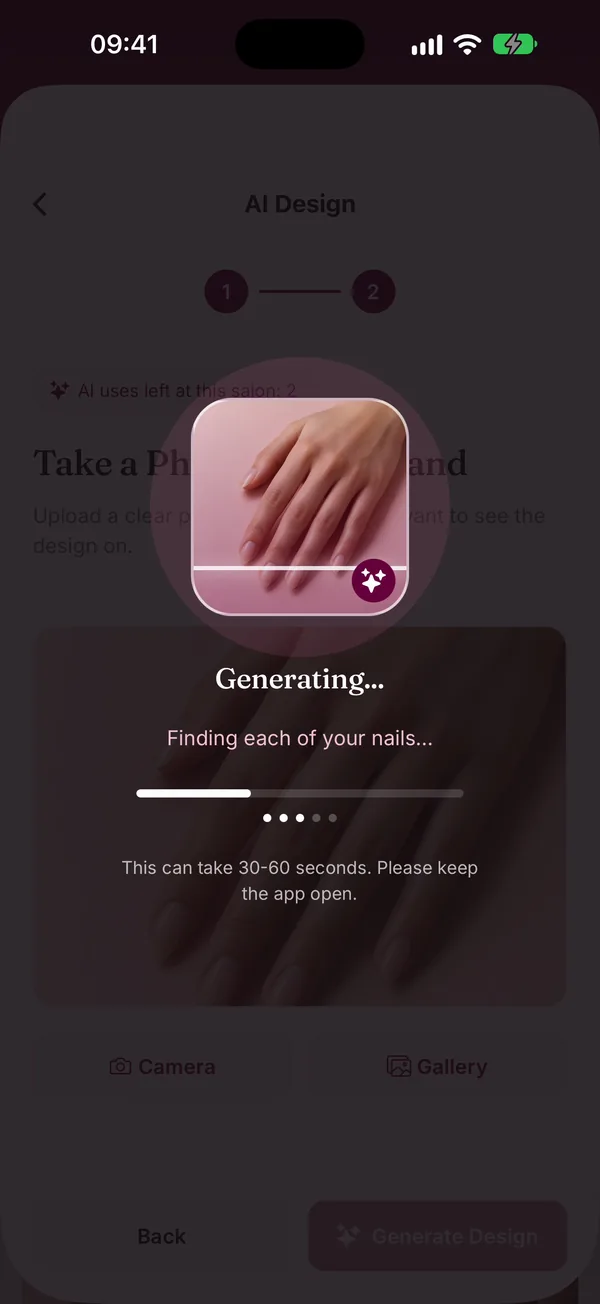
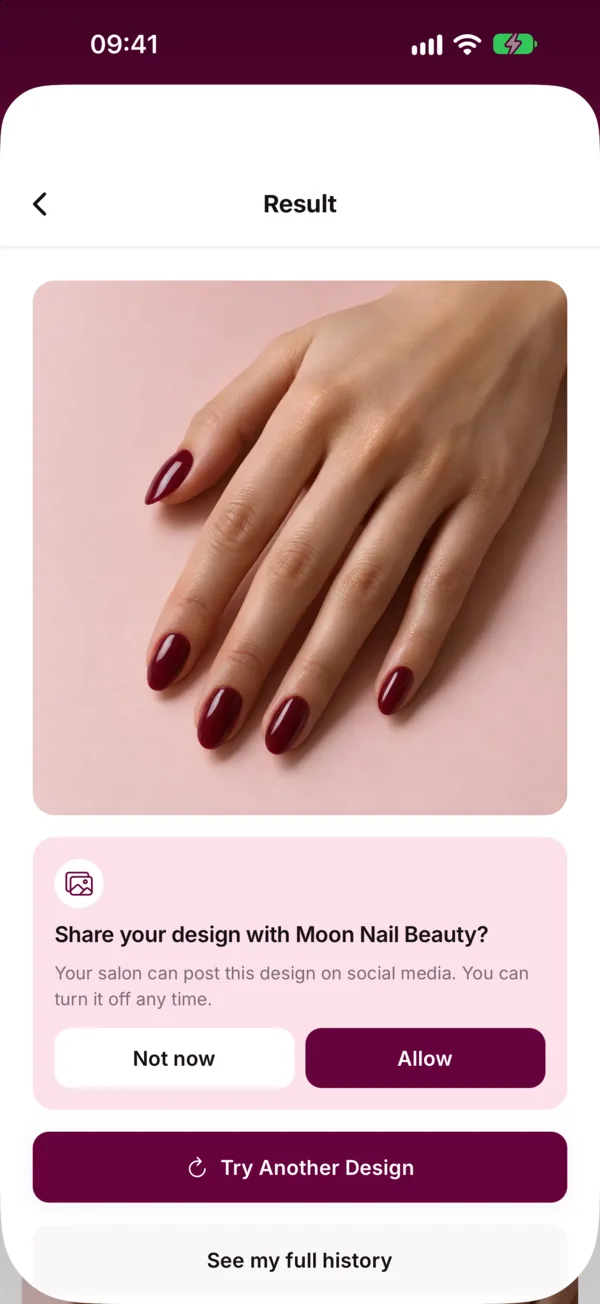
The result screen also asks whether the salon may share the design on social media. The client chooses Allow or Not now, and she can turn it off later.
Clients connect to your salon by scanning your Customer QR code. Each try-on uses one of the AI uses you give each client through that QR code (you choose 1 to 50 per client) and one of your salon's AI credits.
- Tip: add the colours you actually stock, with brand and number, so the shade she falls for is one you can do.
- Tip: suggest a try-on during the consultation or while the polish dries, so she leaves with next month's design already in mind.
- Tip: keep the catalog fresh with seasonal designs and mark a few as Featured.
Between clients: confirm or decline
The new request appears under Awaiting approval on the Overview and in the Requests view of the Appointments screen. In the demo, Emily Davis's 5:00 PM gel manicure joins the two earlier requests.
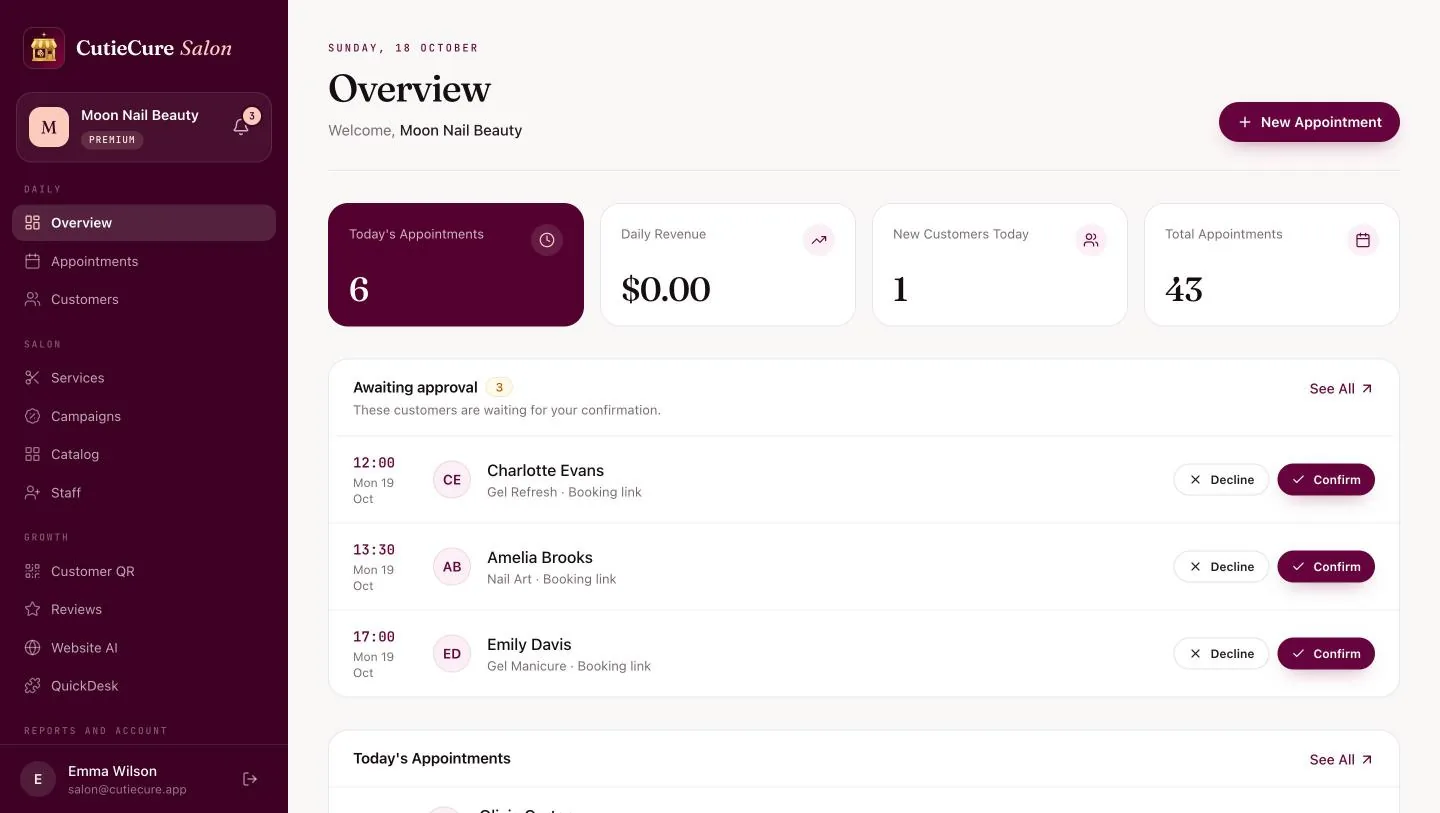
Confirm turns the request into a confirmed appointment. If WhatsApp notifications are on, the client gets a confirmation message. Decline cancels the request, and with WhatsApp on, the client gets a cancellation notice.
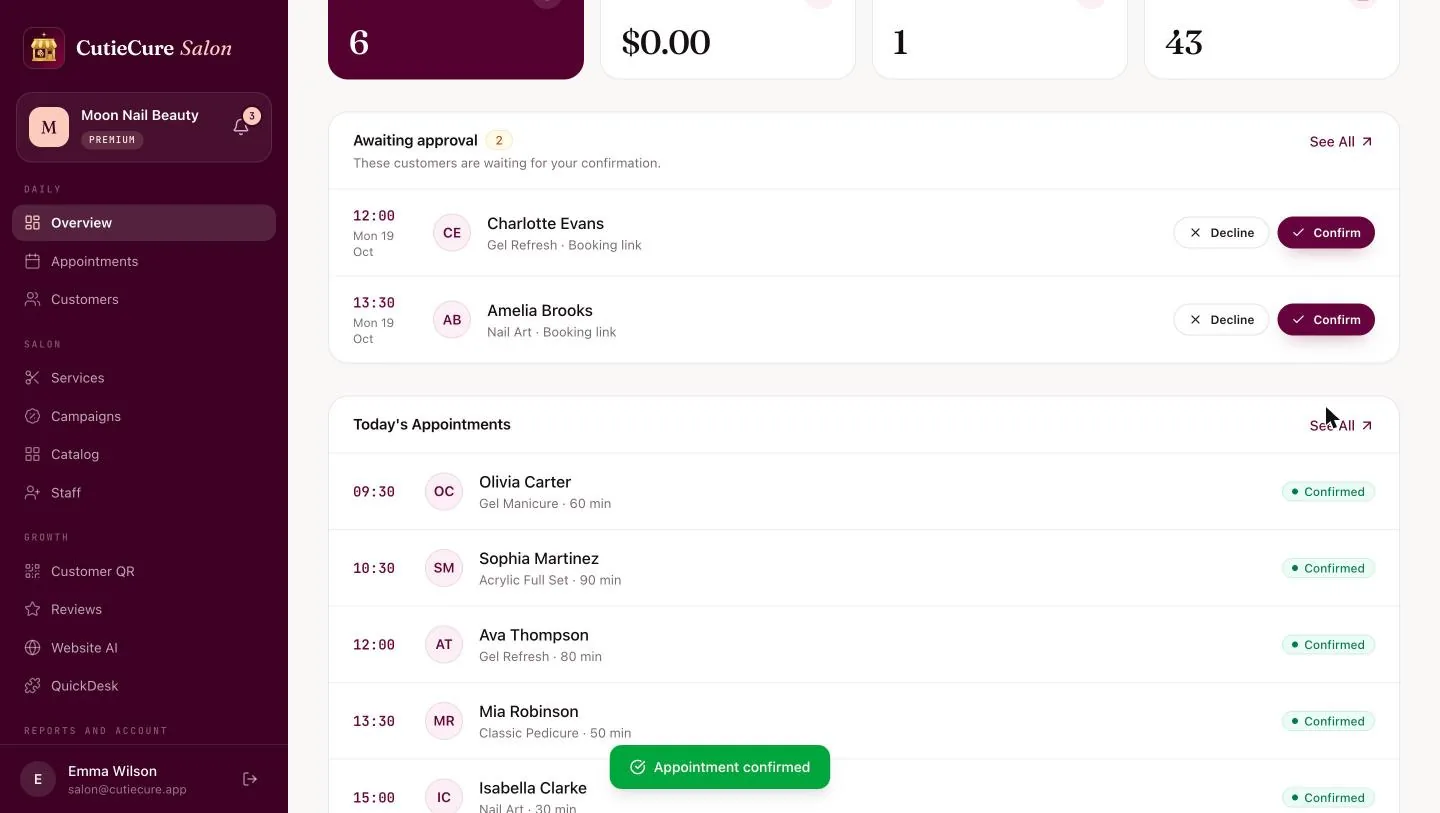
A request you never answer does not block the slot forever. In settings you choose when unconfirmed online bookings are cancelled automatically: after 2, 6, 12, 24, 48 or 72 hours, or never. The demo uses 24 hours. The client is notified when it happens.
- Tip: if you decline because the time no longer works, message the client with another time so you keep the booking.
In the background: WhatsApp reminders and "I'll be there"
WhatsApp notifications are switched on in the salon settings, with a separate switch for each message type:
- Appointment confirmation when an appointment is confirmed, including ones you add yourself.
- Reminders 24 hours and 2 hours before the appointment.
- Ask for confirmation: the client answers "I'll be there" or "Can't make it" with one tap. You choose whether this question goes out 24 hours or 2 hours before.
- Cancellation notices when an appointment is cancelled.
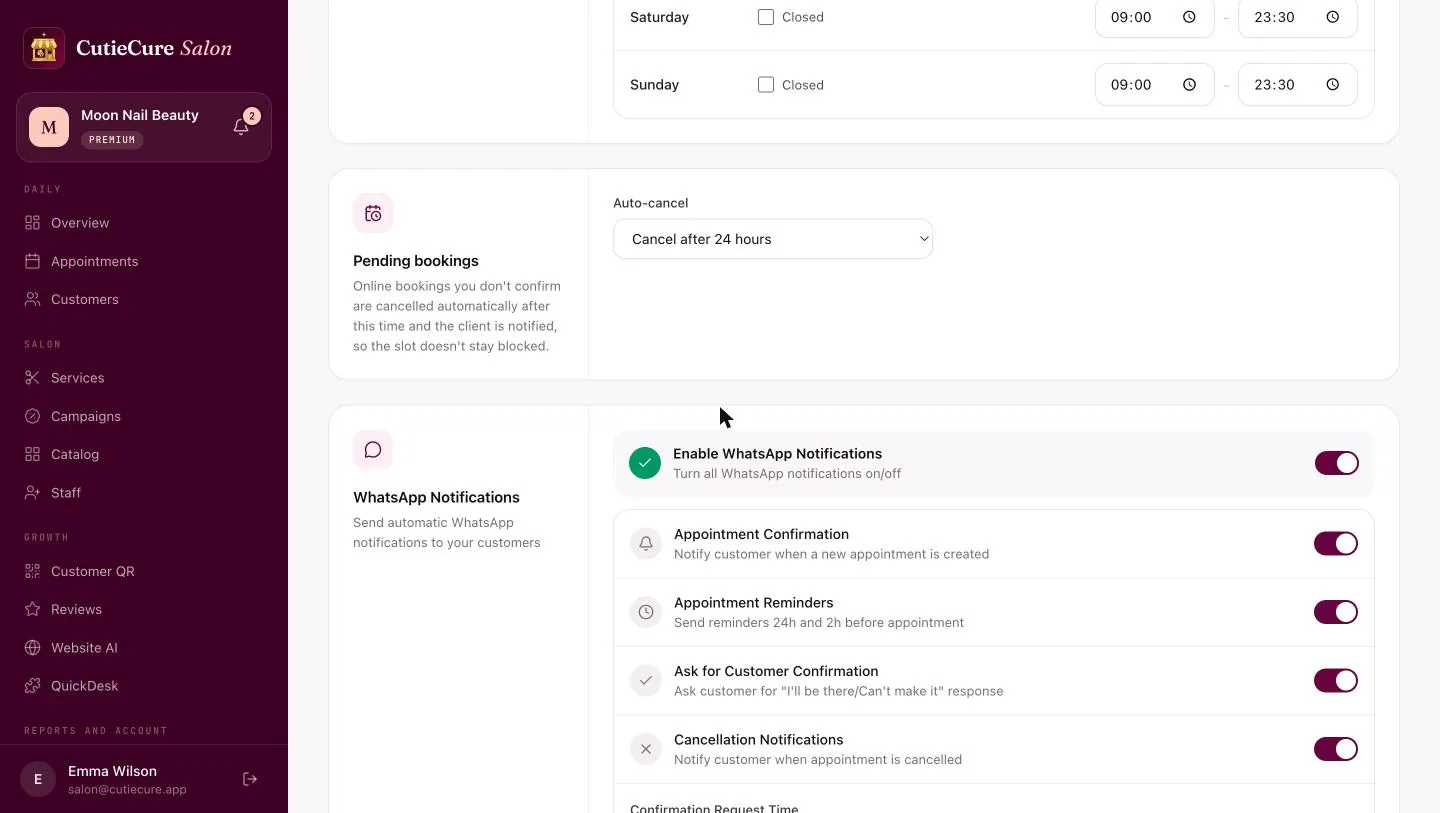
When a client taps "I'll be there", the appointment is confirmed. When she taps "Can't make it", it is cancelled, the time opens up again, and you get a notification, so you can offer the slot to someone else.
Clients who book in the CutieCure Book app also get push reminders. CutieCure Salon does not send SMS.
- Tip: bookings made less than two hours before the appointment do not get WhatsApp reminders, so a quick call is the way to double-check a last-minute booking.
- Tip: reminders work best next to a clear policy. Use the cancellation policy templates and see what missed visits cost you with the no-show cost calculator.
Clients who prefer an app: CutieCure Book
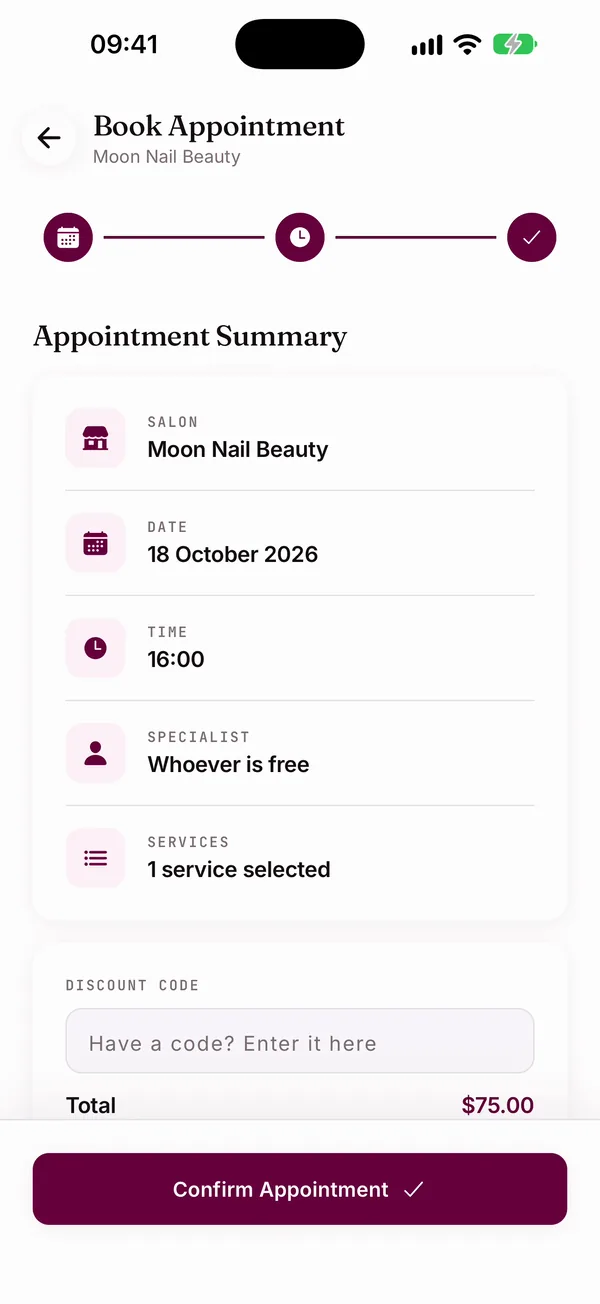
Some clients would rather book in an app. CutieCure Book is free for clients. They connect to your salon by scanning the Customer QR code at your desk, which opens the app or its download page. After that, they see your salon on the home screen with Book Now, call and directions buttons. They choose a service, a day, a time and a specialist or "Whoever is free", with an optional discount code. App bookings land in the same Awaiting approval list.
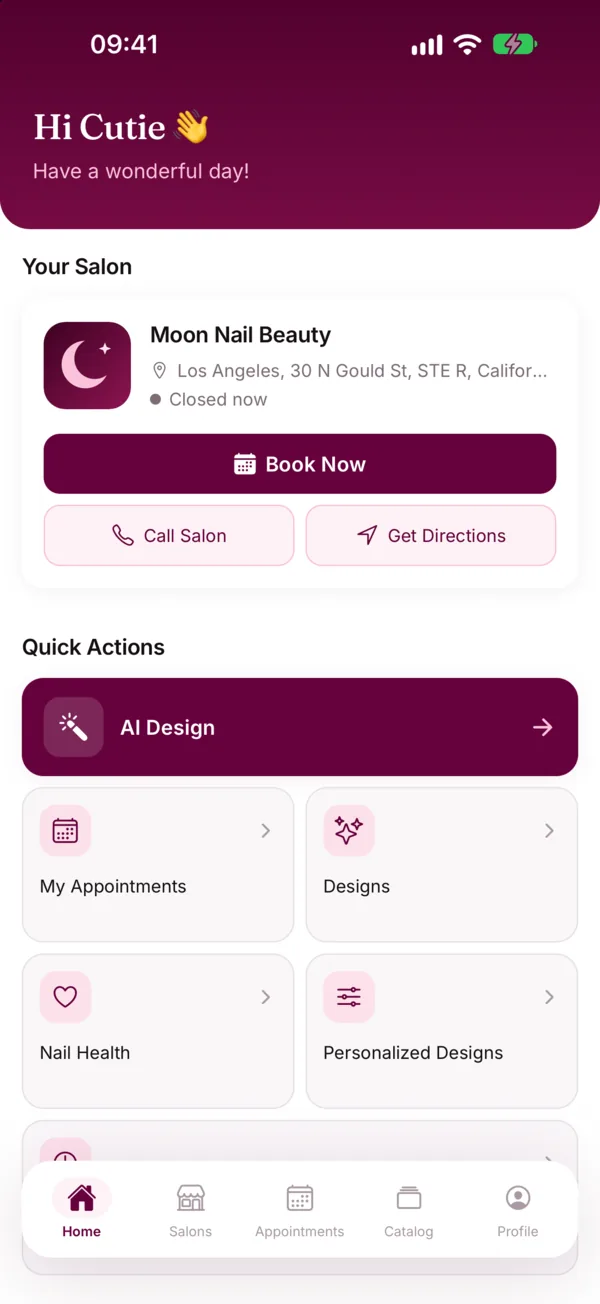
Past try-ons stay in the client's design history, and she can use any of them as the reference for a new design.
- Tip: put the QR code where clients wait, next to a short line such as "Try our designs on your own hand".
Evening: close the day in the calendar
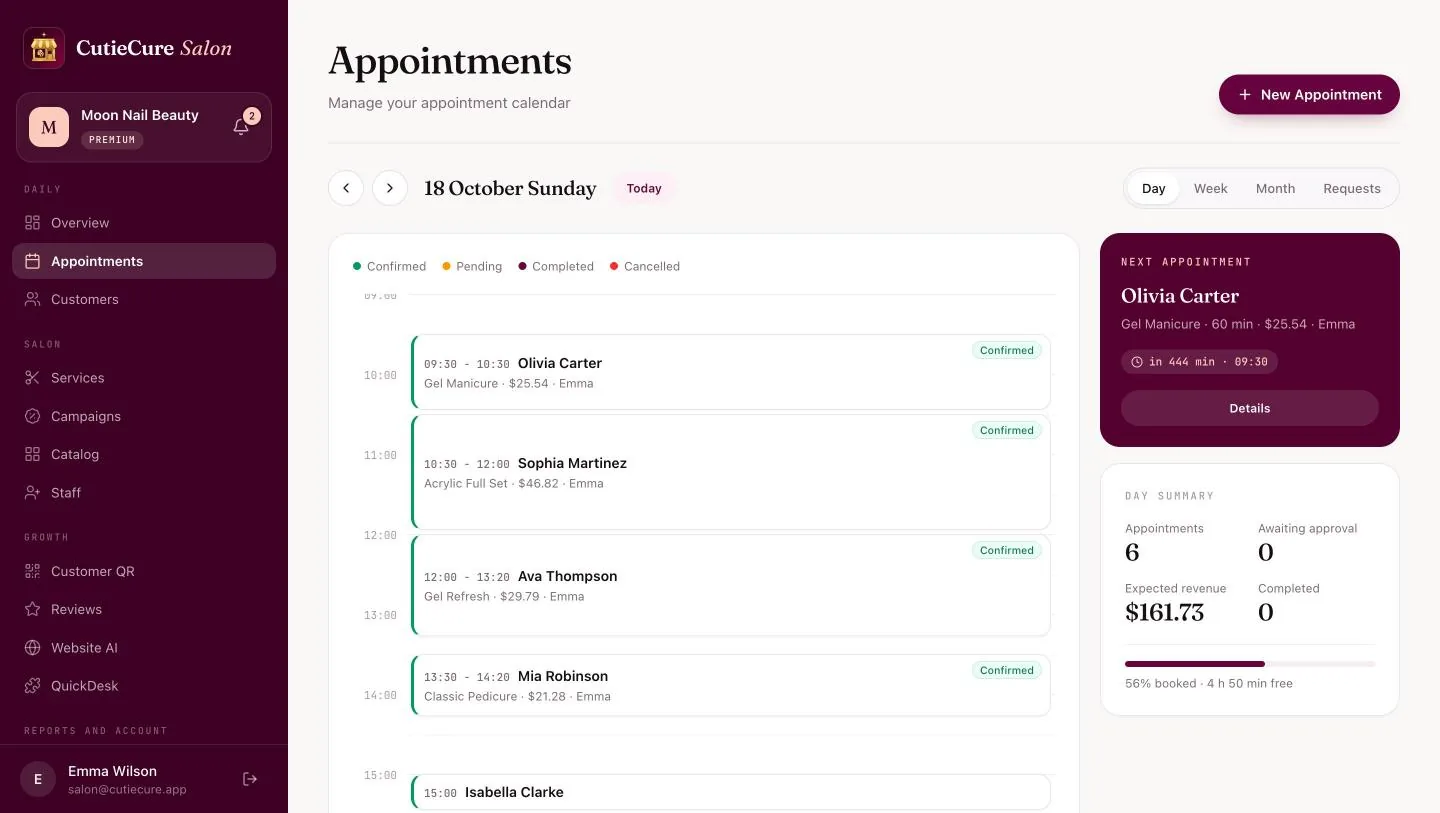
The Appointments screen shows the day as a timeline, colour-coded by status: confirmed, pending, completed and cancelled. On the side are the next appointment and a day summary with the number of appointments, requests awaiting approval, expected revenue, completed appointments and how full the day is. It is the screen at the top of this guide. Week, month and requests views are one click away.
Once an appointment time has passed, you mark it Attended or No-show. From an attended appointment you can create a review link and send it on WhatsApp or copy it. A client marked as a no-show can be blocked from booking online again, if you decide to.
- Tip: mark attendance the same day. Your no-show numbers are only as good as these clicks.
- Tip: answer tomorrow's requests before you leave, so the morning starts with fewer open questions.
- Tip: once a month, review the numbers in the nail salon KPIs guide.
What CutieCure Salon does not do
To set expectations: CutieCure Salon does not take card payments or deposits, has no point-of-sale (POS) system and does not send SMS. Reminders go out on WhatsApp and, for app users, as push notifications. If deposits are central to your policy, plan to collect them another way.
There is no commission on bookings. CutieCure Salon is a monthly or yearly subscription.
Run the same day with your own salon
Everything in this walkthrough is included in the 14-day free trial, no card required. Add your services, share your link and run one real day. To learn more first:
- Nail salon appointment software: what the scheduling side covers.
- Booking software for solo nail techs: the same day when you work alone.
- Free tools for nail salons: a consultation form, a no-show cost calculator and a price calculator.
- How to reduce no-shows and running a multi-staff salon.
Free tools and next steps
- Appointment and scheduling software for nail salonsOnline booking, per-technician scheduling, client notes and no-show tracking for nail salons. No booking commission, 14-day free trial, no card.
- No-show cost calculator for nail salonsSee what no-shows and late cancellations cost you per month and per year, and what reminders and deposits could win back.
Frequently asked questions
Is Moon Nail Beauty a real salon?
No. Moon Nail Beauty is CutieCure's demo salon, and its clients are fictional demo data. The screens in this guide are real, unedited CutieCure Salon and CutieCure Book screens.
How does AI try-on work for my clients?
You add your designs and colours to the Catalog in the panel. The client opens one in the free CutieCure Book app, adds a photo of her hand from the camera or gallery and taps Generate Design; the app says it can take 30 to 60 seconds. Each try uses your salon's AI credits, and the client decides whether you may share the result on social media.
Do clients need an account or an app to book?
No. On the booking link they book with a name and phone number. Clients who prefer an app can use the free CutieCure Book app.
What happens if I do not confirm an online booking?
It waits under Awaiting approval until you answer. With automatic cancellation on, unconfirmed bookings are cancelled after the time you choose (2 to 72 hours, 24 by default) and the client is notified.
Can a client cancel from the WhatsApp reminder?
Yes, if you turn on the confirmation question. "Can't make it" cancels the appointment and you get a notification; "I'll be there" confirms it.
Does CutieCure Salon take deposits or send SMS?
No. There are no card payments, deposits or SMS. Reminders go out on WhatsApp, and as push notifications for CutieCure Book app users.
Does CutieCure Salon charge a commission per booking?
No. It is a flat monthly or yearly subscription, with a 14-day free trial and no card required.
Put this into practice with CutieCure Salon
Online booking link, website widget, packages, customer groups, campaign codes and team performance in one dashboard, plus AI try-on for your clients.